Related guides
Cisco error “remote user is disabled”
Updated
Short answer: this is not an account, password or server problem. The Cisco client has noticed that this Windows PC is being used through a remote session, and its built-in safety rule refuses to connect. The usual cause is that you are controlling the PC with Windows Remote Desktop; it can also be remote-control or monitoring software that opens a remote session in the background. Sign in at the PC itself, or remove that software, and it will connect.
What the error looks like
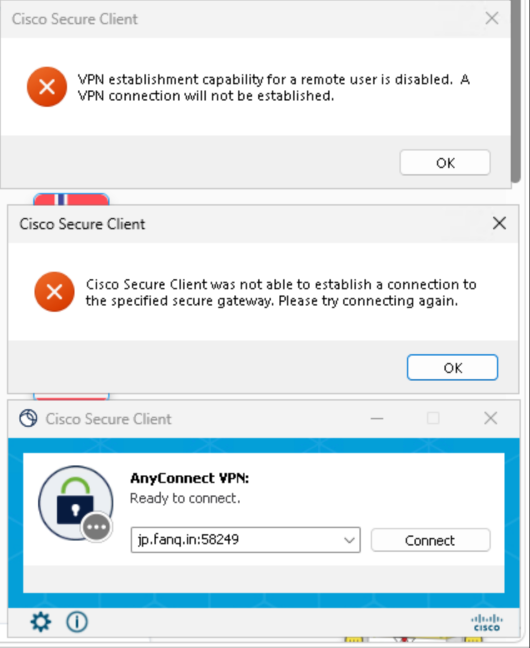
After you click Connect, no sign-in window appears. Two messages pop up instead. The first is the real cause; the second is only its consequence.
- VPN establishment capability for a remote user is disabled. A VPN connection will not be established.
- Cisco Secure Client was not able to establish a connection to the specified secure gateway. Please try connecting again.
Why it happens
Before connecting, the Cisco client checks whether the person using the PC signed in at the machine itself or came in remotely. If it is remote, the client refuses by default. This is a safety rule built into the client, meant to stop someone who has remoted into your PC from joining a network as you.
So the same PC and the same account connect fine when you sit in front of it, and fail when you are remoted in. Retrying or switching regions makes no difference.
Check which case applies to you
To confirm whether you are in a remote session: press Win + R, type cmd and press Enter, then run the command below. The line marked with > is your current session. A session name starting with rdp-tcp means remote; console means you are signed in at the PC: query session
- You are controlling this PC with Windows Remote Desktop, from another computer, a phone or a tablet. This is the most common case.
- The PC is a cloud PC, cloud desktop or remote work machine. Most of them deliver the screen through Remote Desktop.
- You signed in through Remote Desktop earlier and never signed out. That session may still be active, so you can still be treated as a remote user at the keyboard.
- The PC has software that opens a remote session in the background: remote-control or remote-assistance tools, activity-monitoring software, management agents installed by an employer, and security suites such as 360 that bundle remote assistance and network protection. Not all of them trigger this error, but if you see it and are sure you are not using Remote Desktop, they are worth checking one by one.
How to fix it
- Using Remote Desktop now: disconnect, sign in at the PC with its own keyboard and mouse, then click Connect.
- Signed in remotely earlier: sign out of Windows or restart, sign in at the PC, then connect.
- You must operate the PC remotely: use RustDesk, VNC or a similar tool that controls the local desktop instead of Windows Remote Desktop. These are not treated as a remote user.
- Not using Remote Desktop but still seeing the error: open Settings → Apps → Installed apps, uninstall remote-control tools, monitoring software and security suites such as 360, restart, and try again. If it connects, one of them was the cause; reinstall the ones you need one at a time to find which.
- Cloud PC or cloud desktop where you cannot change how you sign in: switch to OpenVPN or the browser proxy. Neither has this restriction, and the same account works.
FAQ
Is something wrong with my account or password?
No. This error appears before you are asked for them, and has nothing to do with your account, password or expiry date.
Will a different region’s server address help?
No. The refusal comes from the client on your PC, not from the server you chose.
Should I reinstall the Cisco client?
No. This is the client’s normal behaviour, not a broken installation.
I really can only reach this PC remotely. What then?
Two options: use a remote tool that controls the local desktop, such as RustDesk or VNC; or switch to OpenVPN or the browser proxy, which both work inside Remote Desktop.
Why single out software like 360?
Security suites and monitoring tools of this kind often include remote assistance and network protection, and they change session and network settings on the PC. They are among the most common sources of interference when Cisco, OpenVPN and similar clients fail to connect. They are not necessarily the cause of this particular error, but removing them once is a worthwhile test.
Related pages
- Cisco: downloads and server addresses →
- Setting up Cisco AnyConnect in China →
- Setting up OpenVPN →
- Using RustDesk for remote help →
- General connection troubleshooting →
- Tencent Video or iQIYI Blocked Abroad? Fix It in 5 Steps →
- How to Choose a China VPN →
- Choosing a VPN Router →
- How to Import a Hiddify Subscription →
- China VPN for Students Abroad →
- What a Web Proxy Is and When to Use One →
- Free or Paid China VPN? →
- What the Private Network (Tailscale) Is →
- What the Router Firmware Does →
- How to Reach Us and Never Lose Contact →
- Where We Beat Other VPNs →
- How to Recognise a Risky VPN App →
- Which connection method fits which scenario →
- Which Region Is Fastest from Inside China →
- For the TV and the Grandparents at Home →
- Watching Home Cameras and a NAS in China from Abroad →
- What to Do When iOS Cannot Install an App →
- Setting Up for Business Trips and Travel →
- On a Company Laptop: No Admin Rights, Corporate VPN Already On →
- Many Devices, One Setup, No Redo on a New Phone →
- Routing a Synology or QNAP NAS →
- Routing a Linux Server and Command-Line Tools →
- “Damaged” on a Mac, and how to verify the installer →
- What macOS's Network Extension Approval Is →
- Real vs fake split routing on a VPN router →
- Not enough device slots? Temporary vs long-term fixes →
- Dropbox and other apps want an HTTP / SOCKS proxy — what to do →
- How to Get Good Answers from the AI Support →
- How to manually uninstall the Cisco client on a Mac →